Homeowners
Stop reciting a 20-character password to every visitor, babysitter and in-law. Frame one card in the kitchen or entryway and guests are on the network before they sit down.
Fill in your network name and password, pick one of seven layouts, and print a card that puts a working Wi-Fi QR code on the counter, the router or the welcome desk. Add your logo and colors. Free, no signup, and every code is scan-tested before you download it.
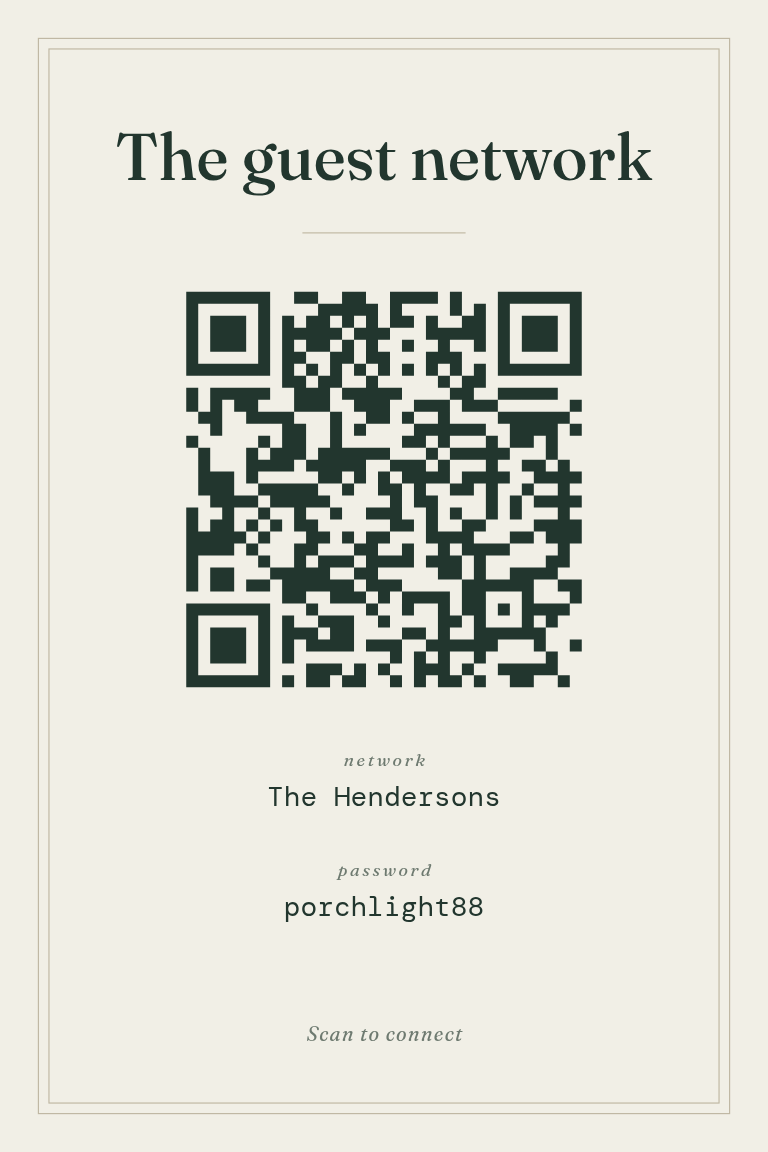
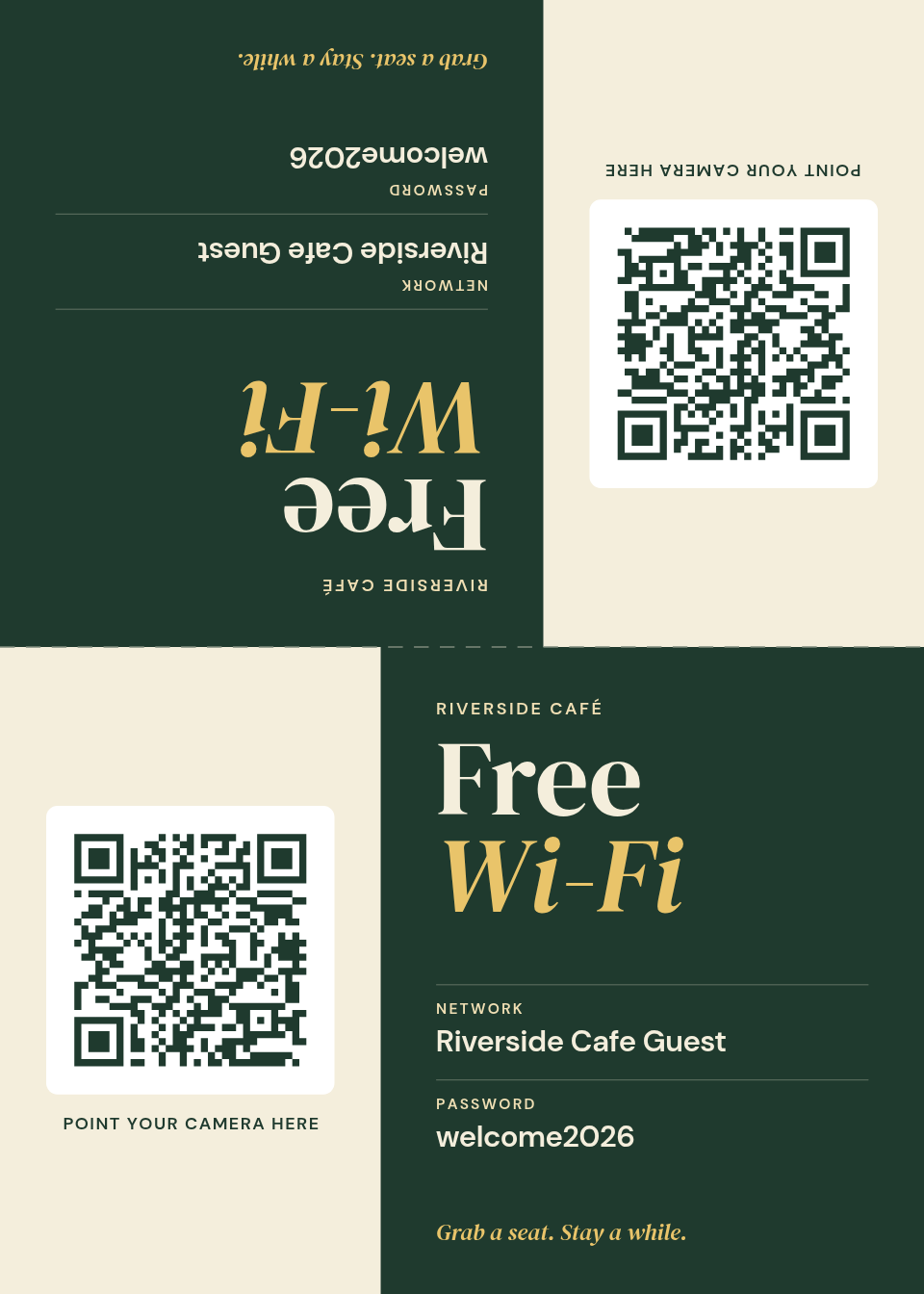
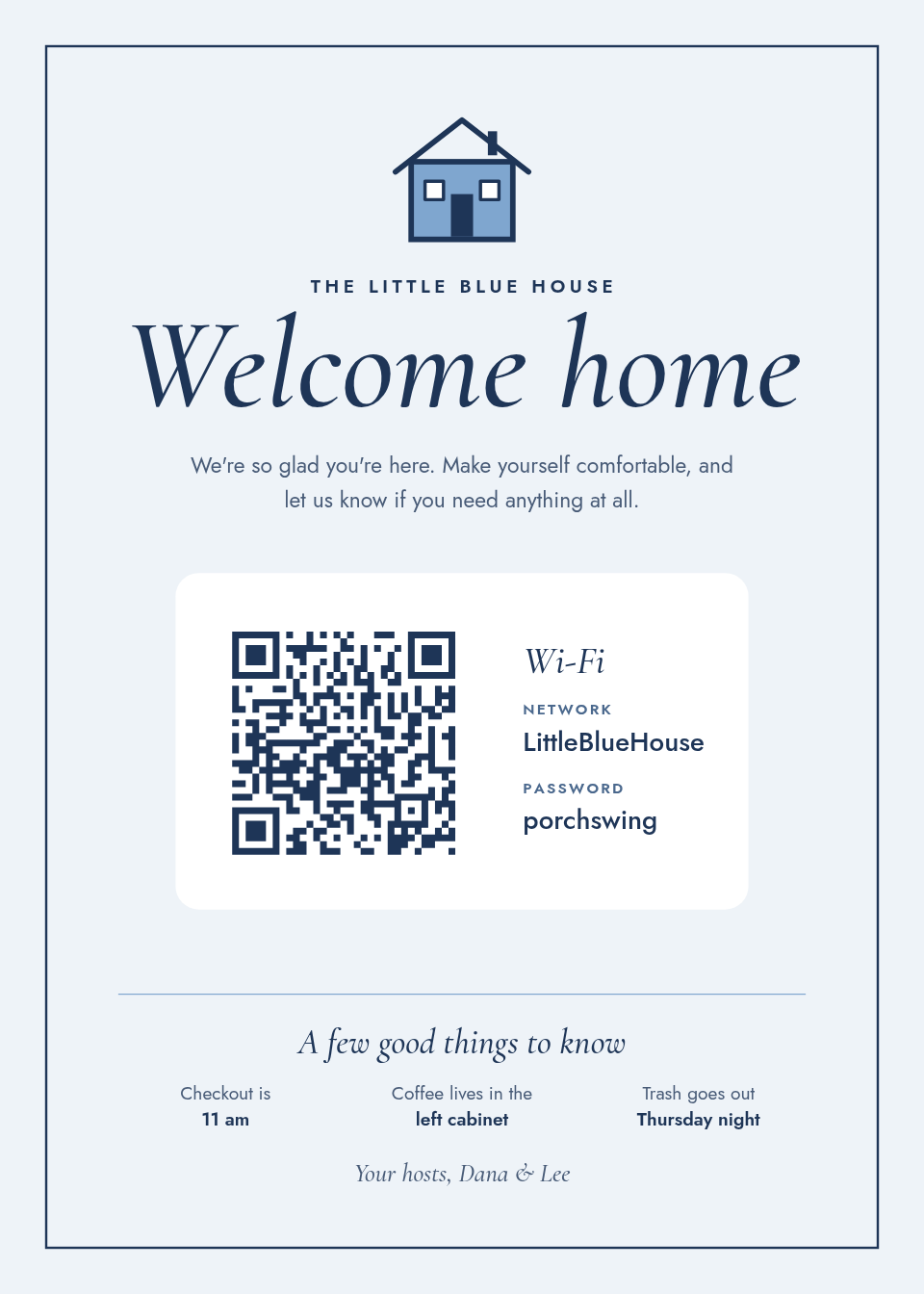
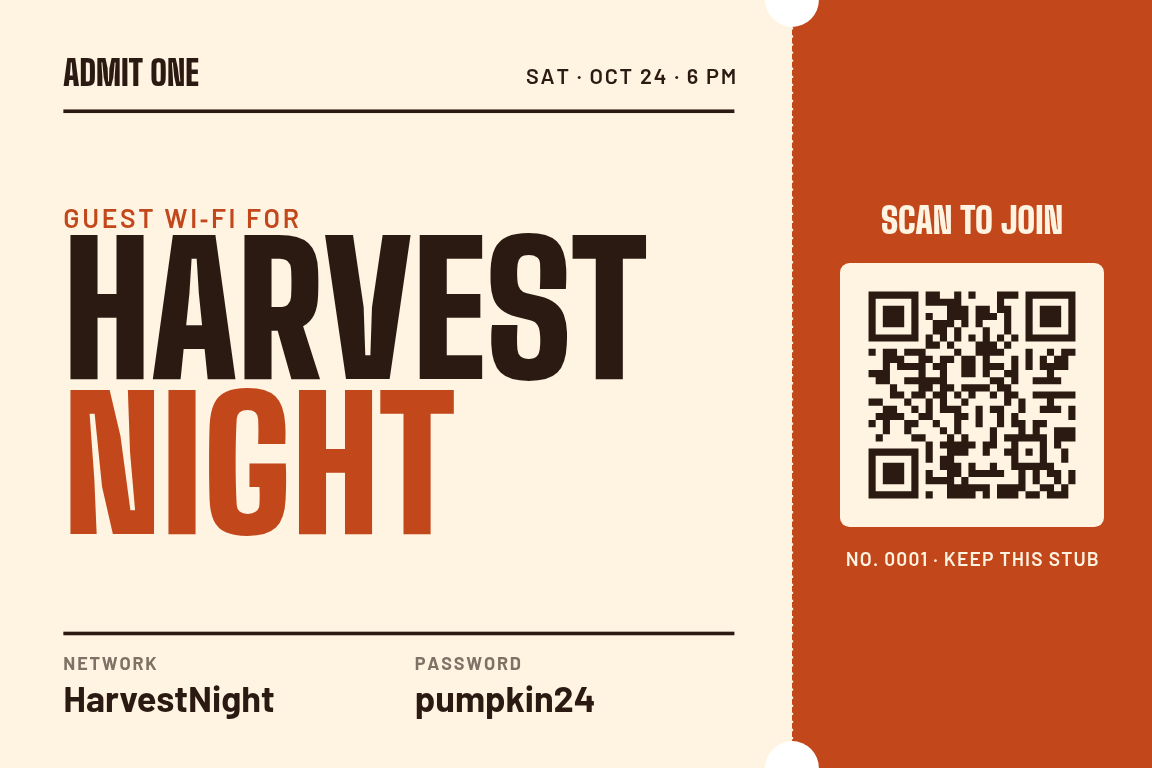
Each one prints at its own size and passes the same scan test before you download it.
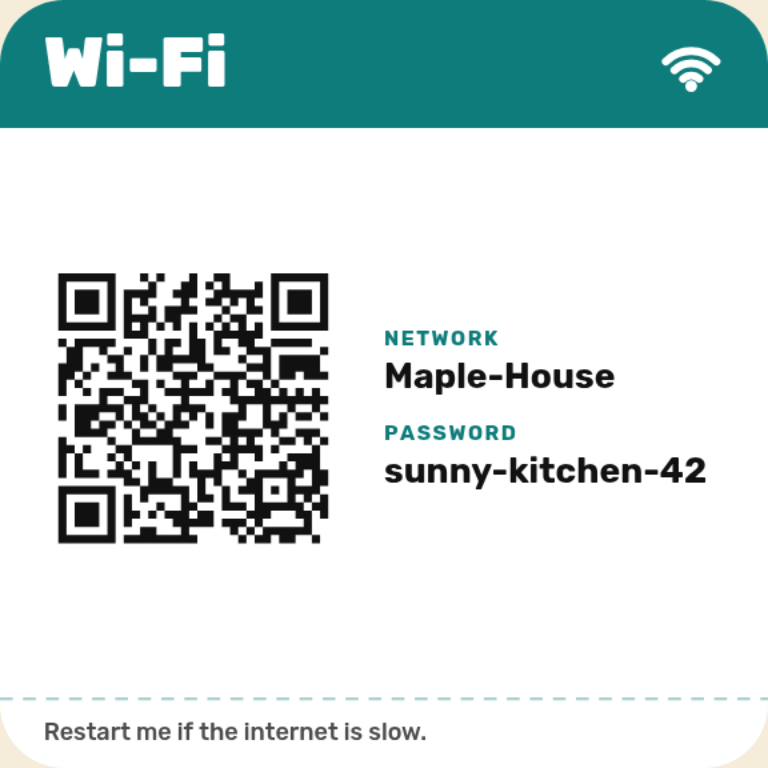
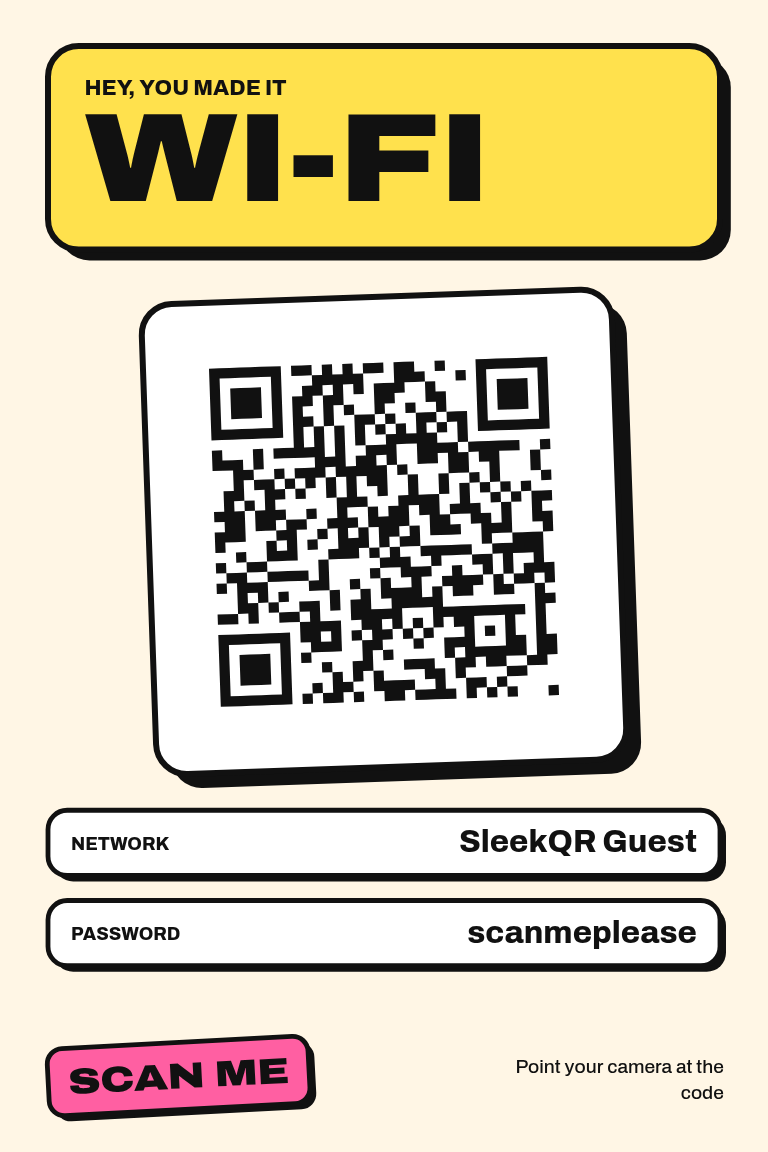
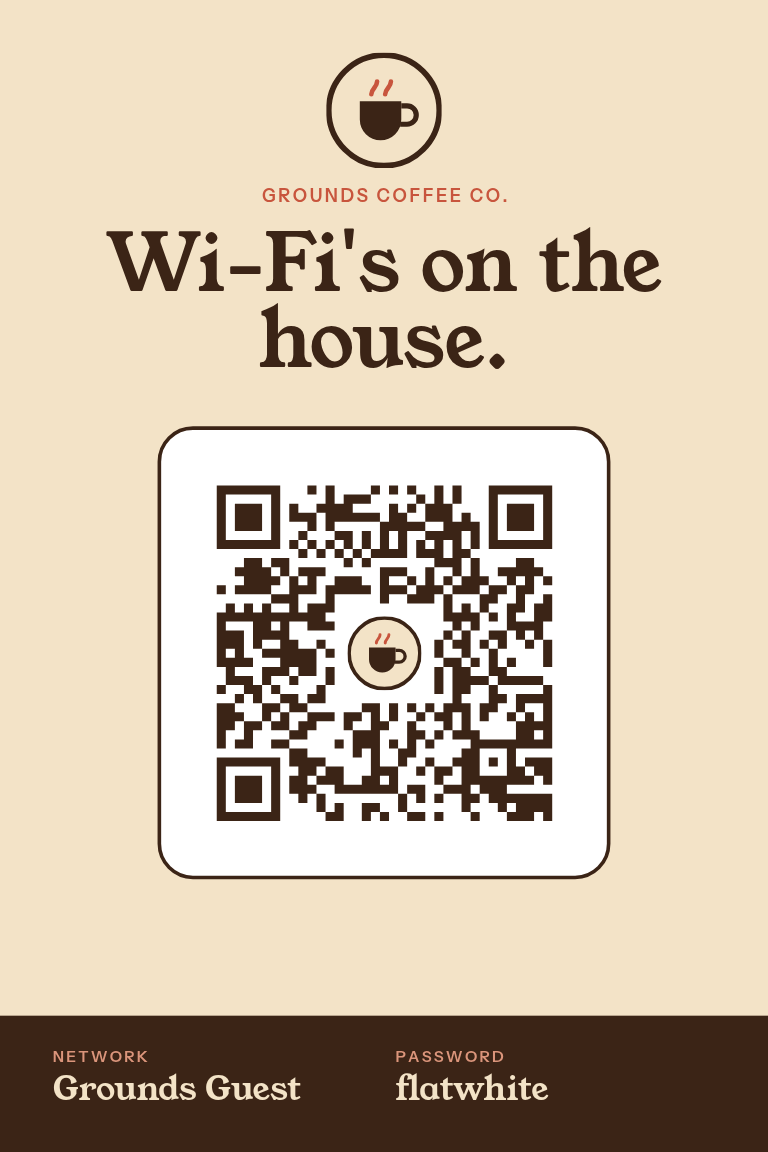
Anywhere people arrive, need the internet, and should not have to ask twice.
Stop reciting a 20-character password to every visitor, babysitter and in-law. Frame one card in the kitchen or entryway and guests are on the network before they sit down.
The Wi‑Fi question is one of the most common guest messages there is. A card on the desk or fridge answers it before check-in, and it fits neatly into a welcome binder or a 4x6 photo frame.
Print a card for the counter and smaller copies for table tents. Guests join without holding up the line, and staff stop repeating the password twenty times a shift.
People waiting will always ask. A tidy card on the side table looks intentional instead of a sticky note taped to the wall.
Visiting clients get on the guest network without an IT ticket. Tape one inside the meeting room door and forget about it.
Set one on the welcome desk or in the bulletin. Everyone connects the same way, and no one needs to find a volunteer who knows the password.
Copy them exactly as they appear in your router, capitalization included. Nothing is sent to a server, the card is drawn right in your browser.
Choose a classic card, table tent, ticket, router sticker, welcome frame, bold card or logo card. Add your logo, pull colors from it, and swap the fonts.
Every card is scan-tested at print size first. Then download a 300 dpi PNG, a PDF at the real size, or a letter sheet with crop marks.
A code fails on paper for boring reasons, and all of them are avoidable. Keep the code dark on a light panel, leave the clear margin around it alone, and print at the real size rather than shrinking to fit. The rough rule for distance is ten to one: a code read from ten inches wants to be about an inch wide.
Long passwords make a denser pattern, so a 40-character guest password needs a bigger code than an eight-character one. Every card is decoded again at a ladder of sizes with a little blur added before you download it, which is how a print run gets caught on your laptop instead of at the print shop.
It is exactly as safe as telling someone the password out loud, because that is what it does. Anyone who scans or photographs the card has the password, so use it for a guest network rather than the network your business systems run on.
Yes. iPhones have read Wi-Fi QR codes in the native camera since iOS 11 and Android since version 10. On older Android phones, guests may need to scan from the Wi-Fi settings screen instead of the camera app.
Each layout prints at its own real size: 4x6 for Classic, Bold and Logo card, 5x7 for the table tent and welcome frame (or 8x10), 6x4 for the ticket and 3x3 for the router sticker. PNGs are 300 dpi, and the letter sheet PDF adds crop marks so you can print several at home.
No. You can hide it so only the QR code appears, which keeps the card cleaner. Leaving it visible is helpful for laptops and older devices that cannot scan.
The password is encoded in the pattern itself, so a printed card stops working and needs to be reprinted. If you rotate your guest password often, keep one laminated card rather than a stack, or leave the guest network password fixed and separate from your main network.
No. The card generator is free, unlimited, with no watermark and no signup.
Type two fields, pick a layout, and print. Free forever, no account, no watermark.
Make your card